Upgrading Fedora 15 to Fedora 17 using PreUpgrade
Upgrading Fedora 15 to Fedora 17 using PreUpgrade
This is the first time I used PreUpgrade and to my surprise, it was flawless. I was able to upgrade from Fedora 15 to Fedora 17 without any issues. That’s one Beefy Miracle!
Steps
Backup!
Always backup. I used Deja Dup.
Update your packages
1
 sudo yum update
Install the preupgrade
1
 sudo yum install preupgrade
Run preupgrade
1
 sudo preupgrade
This step will take hours since it will download all packages to update and test your system. While this is running, you can still use your system or even cancel the preupgrade and resume it later.
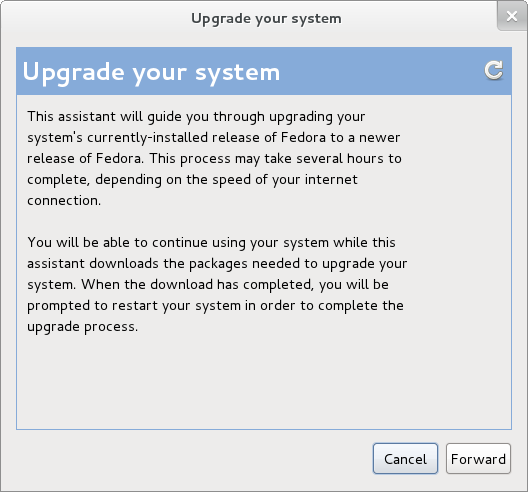
Click forward.
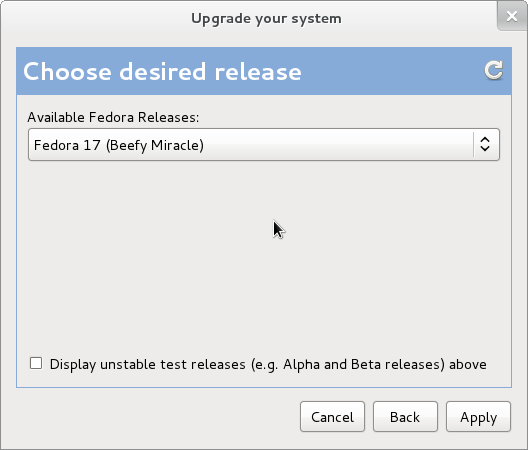
Choose the target release Beefy Miracle.
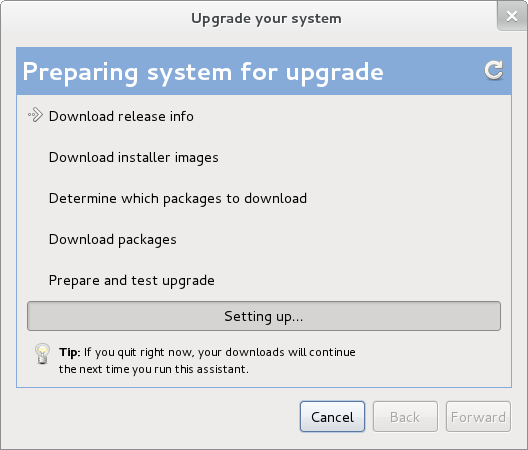
Wait.
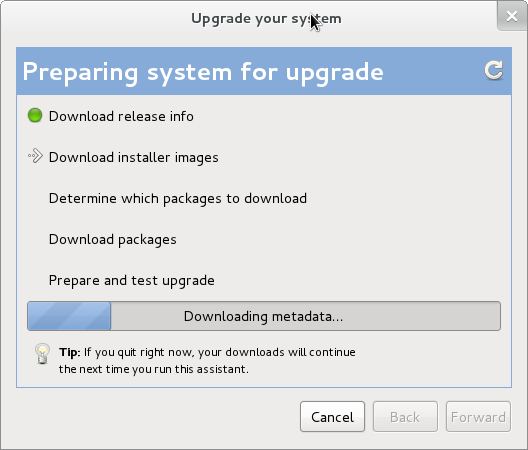
Wait still.
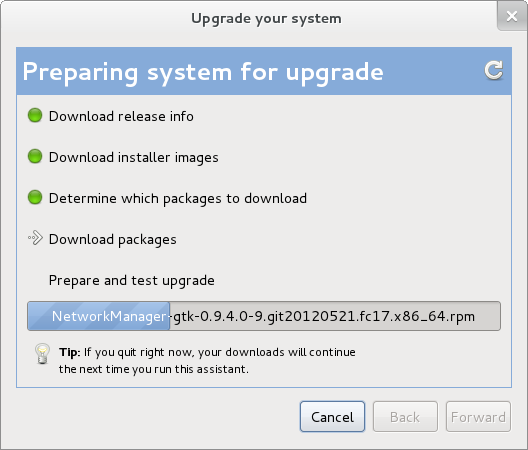
Sleep.
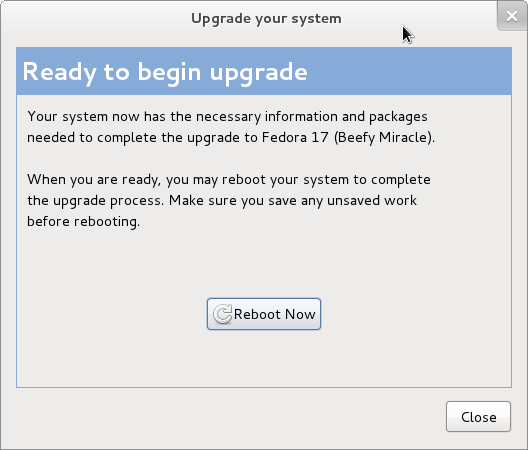
Wake up! Once upgrade is done click Reboot Now.
Reboot to upgrade
This is when the actual upgrade happens. It will take several minutes to an hour or so depending on your current number of packages installed. At the end, it will also do a cleanup which would also take a few minutes.
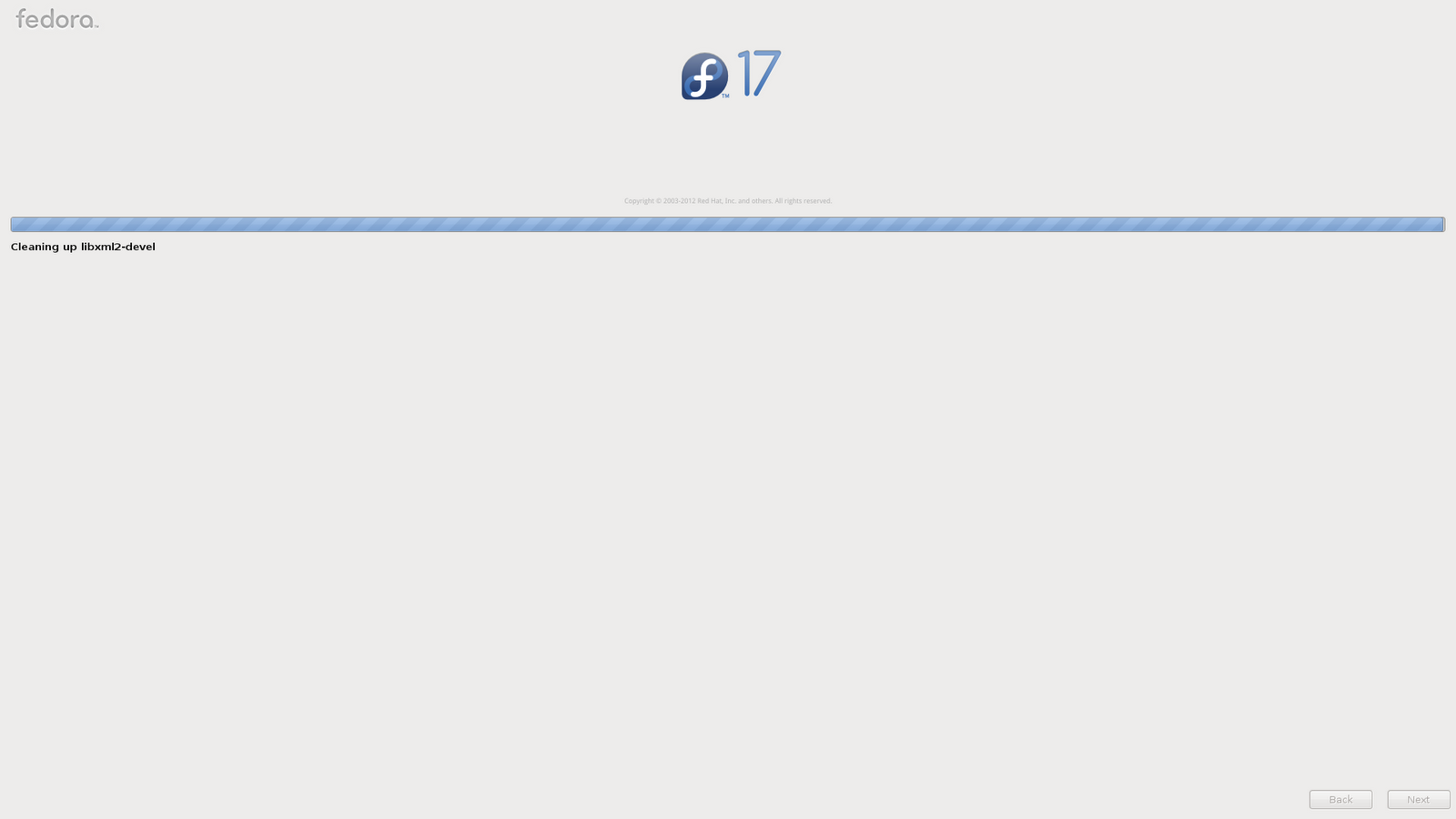
Reboot again
Here you will notice the update to
grub2during boot. Just let it start using the defaults. If you’re lucky like me, you will see your newly upgraded Fedora.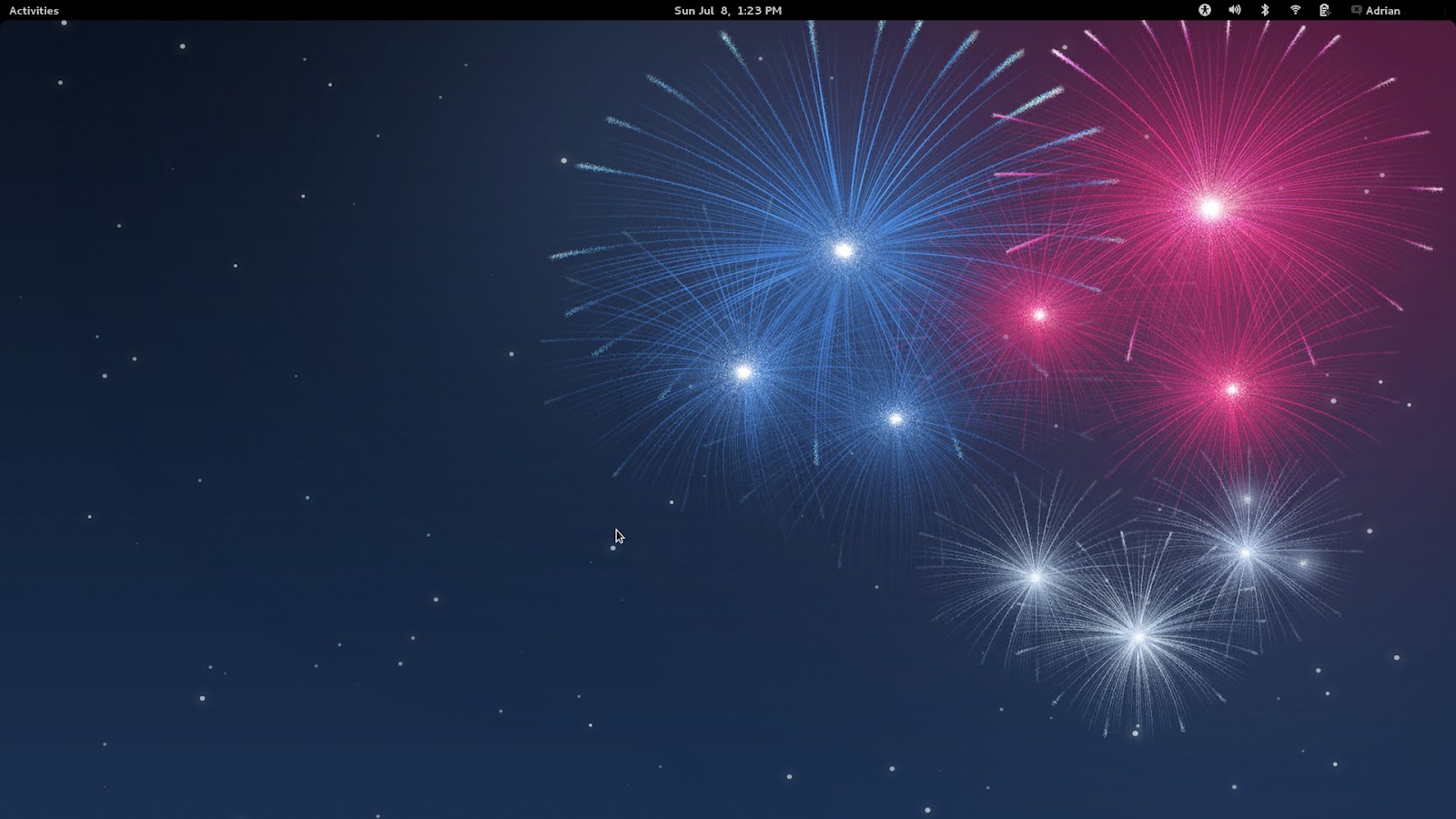
There are post-upgrade steps that you’ll have to do to cleanup and verify the upgrade.
Cleanup old packages
1
 sudo package-cleanup --orphans
This will list packages that are not supported any more after your upgrade. You may remove these packages. For example, I got a lot of
kmod-nvidiapackages from my previous release.1 2 3
kmod-nvidia-2.6.43.2-6.fc15.x86_64-280.13-4.fc15.3.x86_64 kmod-nvidia-2.6.43.5-2.fc15.x86_64-280.13-4.fc15.5.x86_64 kmod-nvidia-2.6.43.8-1.fc15.x86_64-280.13-4.fc15.6.x86_64
1
 sudo yum remove kmod-nvidia-2.6*
Verify that your repos are now F17.
1
 sudo yum repolist
Sync packages with the F17 repo
1
 sudo yum distro-sync
If you encounter unexpected issues, you can read more here.
Comments powered by Disqus.