Use rclone's backup-dir option for backup versioning
Make your backups more reliable with version control using Rclone's backu-dir option.
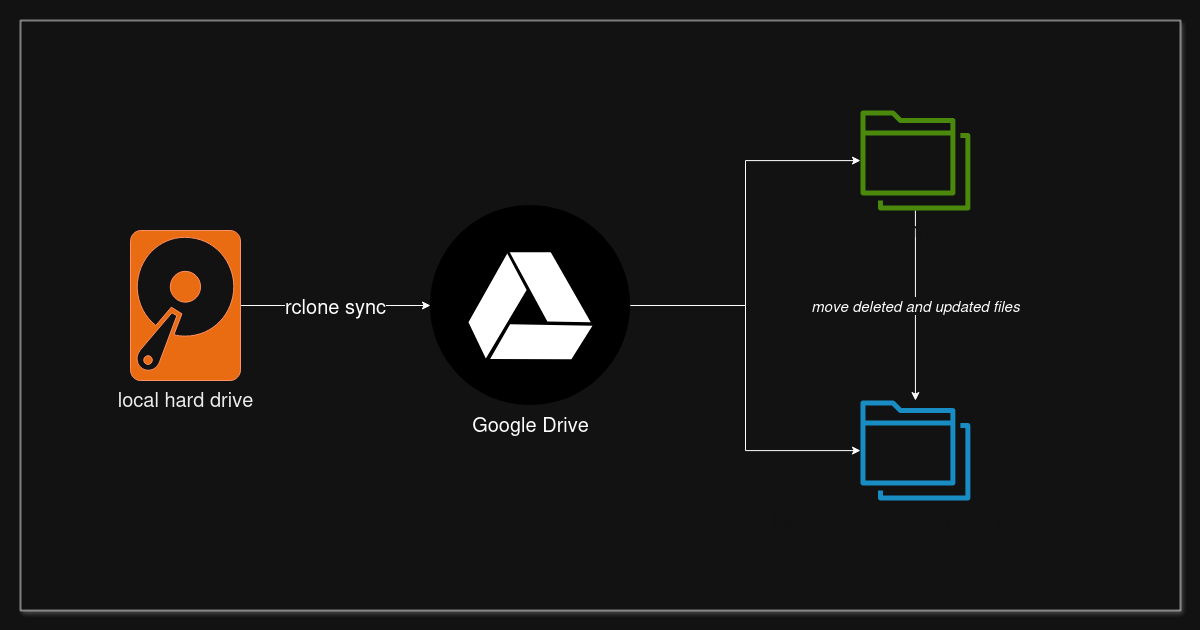
When making backups using rclone I use the copy or the sync command. They are good for manual backups. The problem comes when I want an automated backup using a shell script that runs regularly on schedule via crontab and with versioning such that accidentally deleted or updated files will have some form of archiving. At first I thought I need to build some fancy script to handle versioning. But lo and behold, just adding one option --backup-dir to the copy or sync command solves the problem.
Rclone copy
Let’s step back a bit and understand copy and sync. First, to simply backup a folder in my computer, we can just use the rclone copy command to transfer all its contents to a target location like a cloud storage say Google Drive. Here’s a sample command to copy the contents of ~/sample folder in my home folder to gdrive’s /sample folder.
1
rclone copy ~/sample/ gdrive:/sample -v
See my previous post on how to setup Google Drive in Linux.
The problem with copy is that it is not good for regular backups. If you make changes to the source folder like deleting a file or moving a file to another location, doing another rclone copy of that folder will only copy new files found including files moved to a new location. It will not delete in the target folder what you deleted in the source folder. Here’s a series of commands to show how it works.
1
2
3
4
5
6
7
8
9
10
11
12
13
14
15
16
17
18
19
20
21
22
23
24
25
26
27
28
29
30
31
32
33
34
35
36
37
38
39
40
41
42
43
# contents of the source folder ~/sample in my computer's home folder
$ ls -1 ~/sample
my-doc.txt
my-notes.txt
my-pic.JPG

# executing the rclone copy sent 3 files to gdrive
$ rclone copy ~/sample/ gdrive:/sample -v
2026/05/31 15:32:27 INFO  : my-doc.txt: Copied (new)
2026/05/31 15:32:27 INFO  : my-notes.txt: Copied (new)
2026/05/31 15:32:29 INFO  : my-pic.JPG: Copied (new)
2026/05/31 15:32:29 INFO  :
Transferred:   	    3.263 MiB / 3.263 MiB, 100%, 668.025 KiB/s, ETA 0s
Transferred:            3 / 3, 100%
Elapsed time:         6.1s

# verify the 3 files are copied to the target sample folder in gdrive
$ rclone lsl gdrive:sample
       10 2026-05-31 15:31:13.561000000 my-notes.txt
       13 2026-05-31 15:30:52.726000000 my-doc.txt
  3421710 2013-09-21 21:07:04.000000000 my-pic.JPG

# delete one file in the source folder
$ rm ~/sample/my-notes.txt

# do a copy again and no files were copied. the deleted file was not deleted in gdrive.
$ rclone copy ~/sample/ gdrive:/sample -v
2026/05/31 15:33:36 INFO  : There was nothing to transfer
2026/05/31 15:33:36 INFO  :
Transferred:   	          0 B / 0 B, -, 0 B/s, ETA -
Checks:                 2 / 2, 100%
Elapsed time:         0.8s

# check gdrive again. the my-notes.txt is still there.
$ rclone lsl gdrive:sample
       10 2026-05-31 15:31:13.561000000 my-notes.txt
       13 2026-05-31 15:30:52.726000000 my-doc.txt
  3421710 2013-09-21 21:07:04.000000000 my-pic.JPG

# source folder only has 2 files
$ ls -1 ~/sample
my-doc.txt
my-pic.JPG
So over time, your backup folder gets outdated. More and more of the files you intentionally want to get rid of will still be stored in the backup folder. It will be harder to maintain in the long run. Use rclone copy for the initial copy only. However, if you want the target folder to be always an exact copy of the source folder, use the sync command.
Rclone sync
In rclone sync, the source and target folders get synchronized. Files deleted and moved get executed as well in the target folder. Running a script that regularly performs rclone sync makes your backup always updated to the source. The sample command below is similar to the previous one except that the command is now sync.
1
rclone sync ~/sample/ gdrive:/sample -v
In the previous example, we can continue with the sync command and notice that the target folder now gets updated. The my-notes.txt file gets deleted in gdrive.
1
2
3
4
5
6
7
8
9
10
11
12
13
14
15
# run rsync again in ~/sample folder but this time using sync
# note the output of ht my-notes.txt getting deleted
$ rclone sync ~/sample/ gdrive:/sample -v
2026/05/31 15:48:42 INFO  : my-notes.txt: Deleted
2026/05/31 15:48:42 INFO  : There was nothing to transfer
2026/05/31 15:48:42 INFO  :
Transferred:   	          0 B / 0 B, -, 0 B/s, ETA -
Checks:                 3 / 3, 100%
Deleted:                1 (files), 0 (dirs)
Elapsed time:         1.5s

# the target gdrive folder also contains 2 files now
$ rclone lsl gdrive:sample
       13 2026-05-31 15:30:52.726000000 my-doc.txt
  3421710 2013-09-21 21:07:04.000000000 my-pic.JPG
Sounds good. However, there is also one problem here. Perhaps an even bigger one than rclone copy. When you accidentally deleted a file or folder in your source folder, the next scheduled rclone sync command will perform the same accidental delete in the target folder. When you make an update to a file and later you realize you want to rollback to the older version of it, the synced backup will not have the old copy since it will always sync its contents with the source.
In the sample folder, let’s say I accidentally deleted my-pic.JPG or made a wrong edit to it and I wanted the original copy. Then I only realized it after a few hours or days. An automated rclone sync already happened in the background from a script I ran on crontab. Then I already lost the photo since the backup copy in gdrive will also be deleted.
Rclone sync with --backup-dir option to the rescue
In our two examples, simply using rclone copy makes your backup bloated with unwanted files already deleted. On the other hand, simply using rclone sync can be too risky for accidental deletes or unwanted updates. The best approach is to have versioning. This means making a copy of the delta changes and not repeat copies of backups to save disk space. Each file will have its old versions preserved as they get updated or deleted. That’s what the backup-dir option does. By simply adding another target directory to the rclone sync or rclone copy command e.g. --backup-dir gdrive:/sample-deleted-files, rclone will move files that has been deleted or updated to this backup directory and preserve it.
1
2
3
rclone sync ~/sample/ gdrive:/sample \
  --backup-dir gdrive:/sample-deleted-files \
  -v
Let’s try the sample folder again. Suppose I accidentally deleted the my-pic.JPG but now my script uses the backup-dir option.
1
2
3
4
5
6
7
8
9
10
11
12
13
14
15
16
17
18
19
20
21
22
23
24
25
26
27
28
29
30
31
32
33
34
35
36
37
38
39
40
41
42
# here's the contents of the source sample folder
$ ls -1 ~/sample
my-doc.txt
my-pic.JPG

# here's the contents of the target sample folder in gdrive. everything backed up.
$ rclone lsl gdrive:sample
       13 2026-05-31 15:30:52.726000000 my-doc.txt
  3421710 2013-09-21 21:07:04.000000000 my-pic.JPG

# oops, accidental rm happened in the source folder.
$ rm my-pic.JPG

# check again, my photo got deleted!
$ ls -1 ~/sample
my-doc.txt

# the automated rclone sync happened
# but notice the photo got moved instead of deleted.
# it also was done on the server-side
$ rclone sync ~/sample/ gdrive:/sample \
  --backup-dir gdrive:/sample-deleted-files \
  -v
2026/05/31 16:10:02 INFO  : my-pic.JPG: Moved (server-side)
2026/05/31 16:10:02 INFO  : my-pic.JPG: Moved into backup dir
2026/05/31 16:10:02 INFO  : There was nothing to transfer
2026/05/31 16:10:02 INFO  :
Transferred:   	    3.263 MiB / 3.263 MiB, 100%, 0 B/s, ETA -
Checks:                 3 / 3, 100%
Deleted:                1 (files), 0 (dirs)
Renamed:                1
Elapsed time:         4.5s

# check gdrive after the rclone sync with backup-dir option
# the sample folder is synced and photo was removed
$ rclone lsl gdrive:sample
       13 2026-05-31 15:30:52.726000000 my-doc.txt

# but check the backup-dir folder in gdrive
# the photo was moved there!
$ rclone lsl gdrive:/sample-deleted-files
  3421710 2013-09-21 21:07:04.000000000 my-pic.JPG
In the example above, the deleted file gets moved to the backup-dir folder. This also works for updated files. The old file will be moved by rclone to the backup-dir first before copying the updated file from the source.
Improving backup-dir with dynamic name for versioning
We used a static name sample-deleted-files for backup-dir. All files will be moved to this single folder. If there are files with the same names from different folders in the source or the same file gets moved more than once, they will just overwrite each other. The backup-dir can be dynamic by adding a date timestamp to its name. For example, if you ran rclone sync once per day, you can use sample-deleted-files/yyyy-mm-dd as the dynamic backup-dir name. For every run, a new folder will be created. A file that gets updated on different dates will have different copies in the backup-dir’s subfolders. If you ran multiple times a day, then perhaps a timestamp will be required.
There is also the --suffix option that adds suffix to a file. This prevents collision for cases where the same filenames get versioned or the same file gets versioned multiple times. Adding the timestamp suffix truly makes versions per run of the backup.
An example implementation of this would have variables like BACKUP_DATE and BACKUP_TIME. Append these in the --backup-dir and --suffix option.
1
2
3
4
5
6
7
8
9
10
11
12
13
14
15
16
17
18
19
20
#!/bin/bash

IGNORE_FILE=rclone-ignore.txt
BACKUP_DATE=$(date +"%Y-%m-%d")
BACKUP_TIME=$(date +"%H%M%S")

echo "Processing: sample..."
rclone sync \
  /home/adrian/sample/ \
  gdrive:/sample \
  --create-empty-src-dirs \
  --checkers=4 \
  --transfers=2 \
  --tpslimit=8 \
  --fast-list \
  --drive-chunk-size=32M \
  --exclude-from "$IGNORE_FILE" \
  --backup-dir "gdrive:/sample-archive/deleted/$BACKUP_DATE" \
  --suffix "_${BACKUP_TIME}" \
  -v
Summary
Here we discussed how we can implement an automated backup with versioning of files using rclone’s sync command with the backup-dir option. With this approach, you are protected from accidental deletes of your files or a hard disk crash. Your computer files can be synced to cloud without multiple copies of the same files saving a lot of disk space but also preserves the delta changes of your files. Just make sure to regularly clean-up and housekeep the backup folder.
I have a bash script available in my github repo here. Test it out on your folders and files. If you’re happy with it, schedule on crontab. Let me know how it works. Enjoy ^^.
Comments powered by Disqus.